
Versioning
Maintaining multiple versions of your documentation is critical for many different technical products. This page goes into the details of how versioning works in ReadMe, as well as several use cases.
Affected Sections: Guides, Recipes, and Reference sections are versioned. Content for Landing Page, Discussions, and Changelog will persist across versions.
Making a New Version
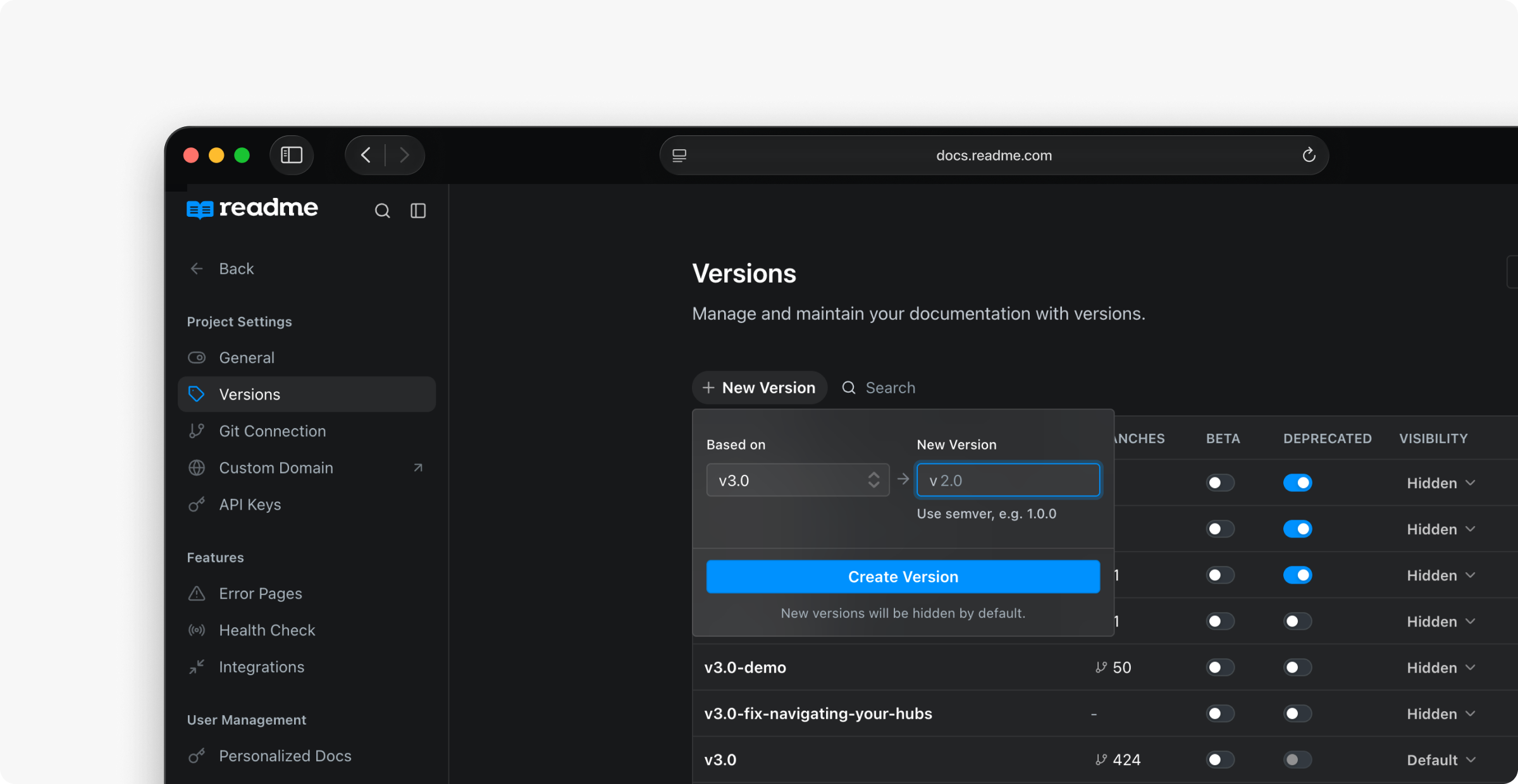
Create new versions on the Versions page, which you can find from the versions & branch menu in the sidebar, or navigating to Settings → Versions.
Click New Version, then select the version you want to fork from and give your new version a name.
Semver-ish
Our versioning is based on Semver, but is more flexible than Semver in terms of the acceptable inputs. This means your versions can be as simple as v1.0, but as complex as v1.0-hello-this-is-a-version.
Version Settings
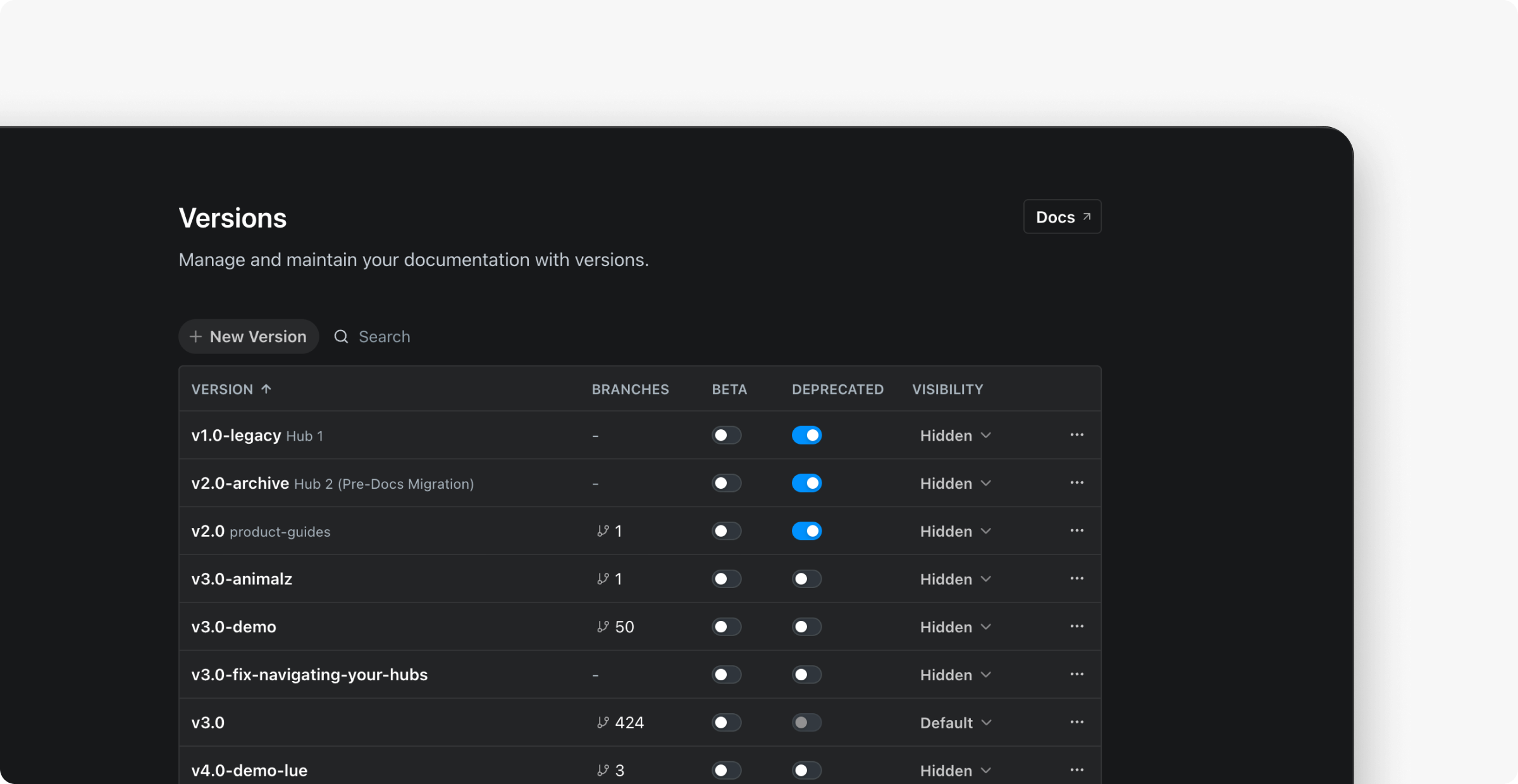
The versions page shows the name, display name, number of branches, beta, deprecated, and visibility settings for each version.
- Display Name: This is the name that is shown in your docs instead of the semver version name.
- Beta: Indicates that a version is in beta and adds a badge next to that version in your docs.
- Deprecated: Indicates that a version is deprecated and adds a badge next to that version in your docs. Users will also see a red banner across the top of your docs while viewing this version indicating that it’s deprecated.

The deprecated banner
Visibility
Default
This is the version that your domain will direct to. Users can change to a different version by clicking the version dropdown selector.
Public
Selecting this will make this available in the version dropdown selector and to anyone that can view your docs. If unselected, this version will be marked as Hidden and only be visible to project teammates (including Admins, Editors, and Viewers).
Hidden
When a version is hidden it won’t be accessible to the public and will not be shown to the public in the version menu in your docs.
Displaying Version Dropdown
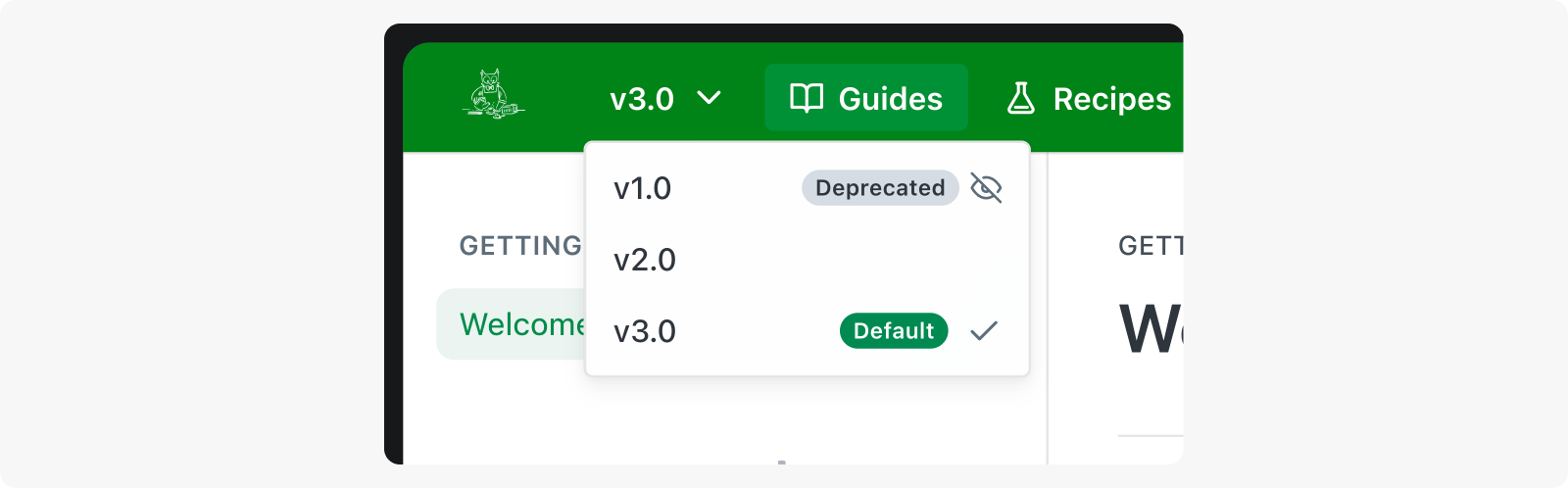
Admin view: Hidden and Deprecated are not visible to end-users
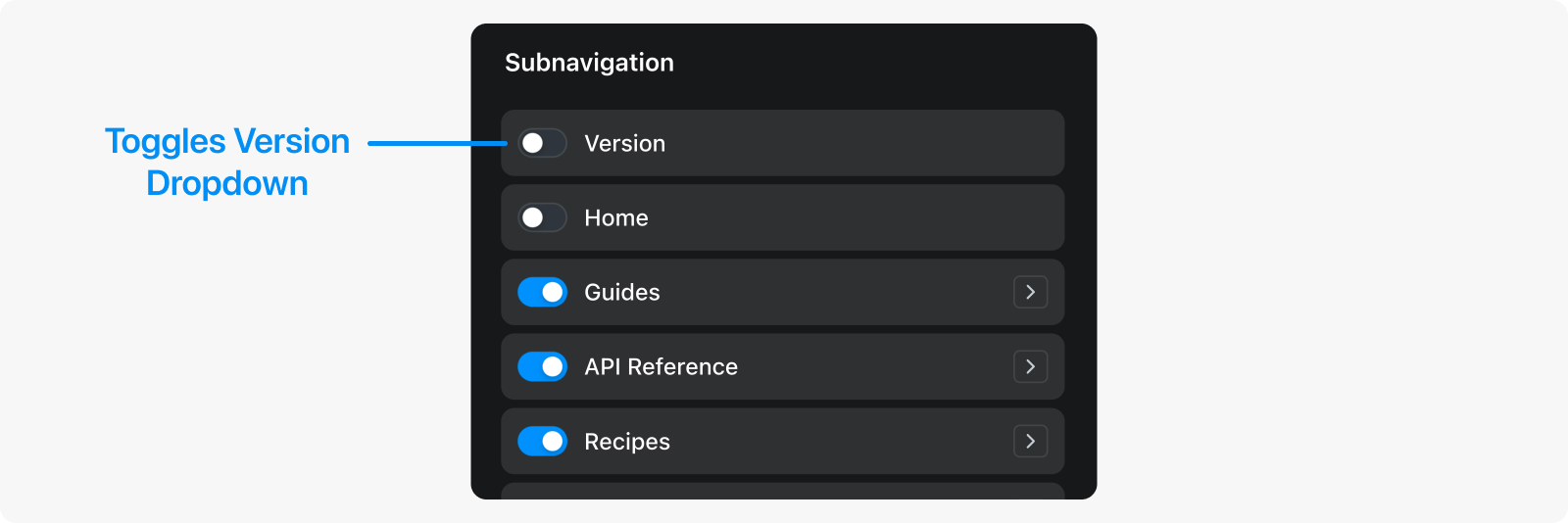
By default, we show the aforementioned version dropdown picker in the subnavigation bar. You can toggle to display or hide this in Appearance > Navigation.
Reusable Content
Any Reusable Content created within one Version can only be used within that Version's documentation; it's not possible to define Reusable Content blocks that can be used across Versions within a single project.
If a new Version is created when forked from an existing Version, the new Version inherits all the Reusable Content blocks defined in the existing Version. However, the Reusable Content blocks in the new Version are completely independent from the old Version.
Global Reusable ContentProjects on an Enterprise plan have the ability to define Global Reusable Content that can be used across Projects and Versions. See our Reusable Content for Enterprise Groups docs for more information!
Use Cases
There are lots of different scenarios where doc versioning might be useful — some are more obvious than others. The most obvious use case is for when your documentation version needs to match the versioning that might be taking place with your API or other technical product, and you need to maintain copies of your docs for each respective version.
Another use case is for bigger content restructuring or migrations, especially when these changes are more involved than simply updating a few pages (in which case we'd recommend Suggested Edits. You can fork a new version of your docs, do some major restructuring (e.g. reorganizing page categories, combining pages, deleting outdated content, etc.), and still have your old docs as your public-facing changes. And when you're ready to flip the switch over, it's as easy as renaming the versions and toggling a few version settings!
FAQ
How many versions can I create?
Starter plan users can create 1 version. Upgrade to the Pro plan or higher to unlock unlimited versions.
Updated 8 days ago